

PACCAR ESA Software Download 5.6 2023
$ 86.00
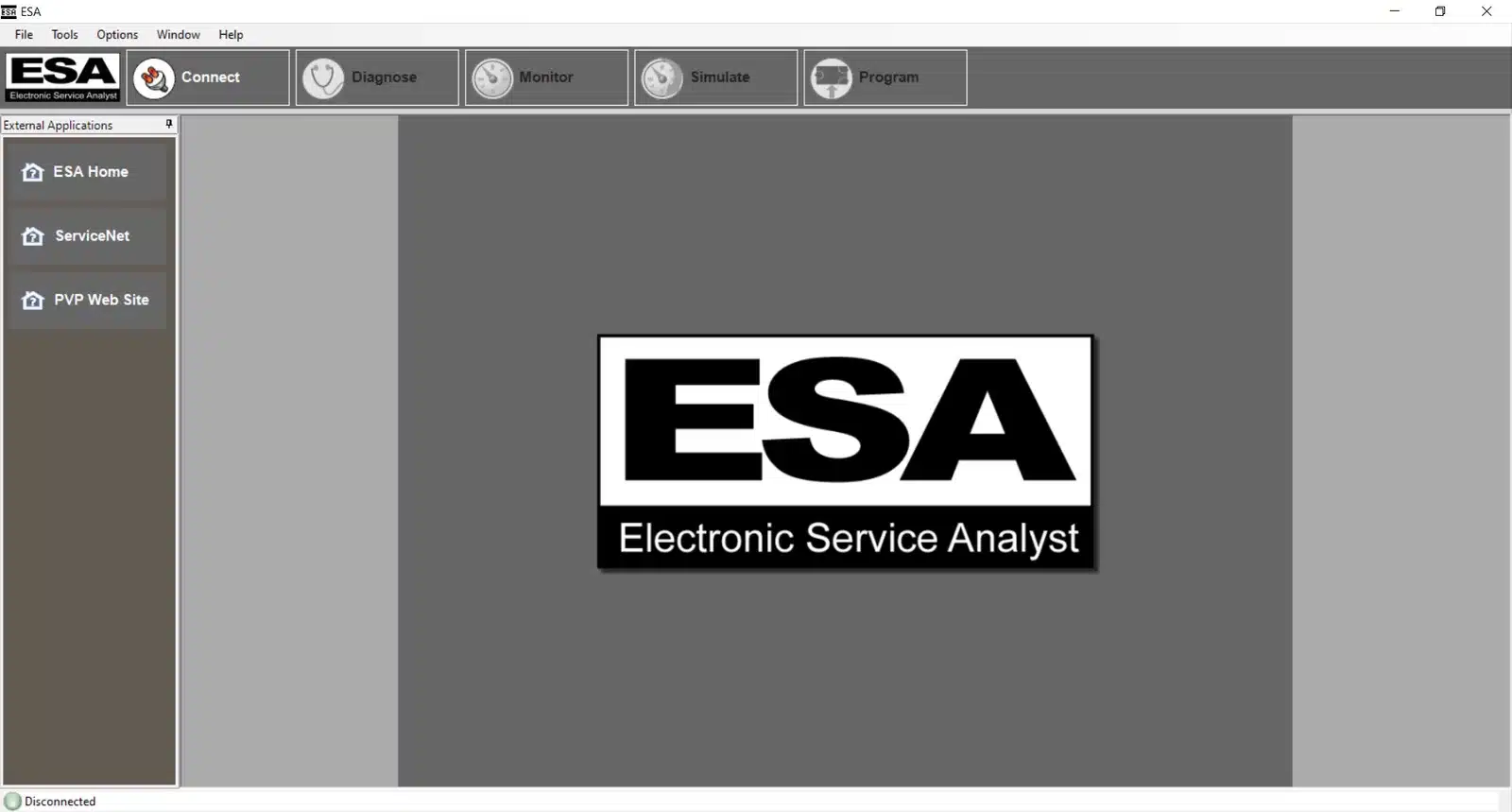
PACCAR ESA Software Download 5.6 is a key diagnostic tool for heavy trucks equipped with PACCAR engines. This software enhances vehicle performance and streamlines maintenance processes. The download and installation of PACCAR ESA 5.6 are straightforward.
PACCAR ESA Software Download 5.6: Your Essential Guide
PACCAR ESA Software Download 5.6 is a key diagnostic tool for heavy trucks equipped with PACCAR engines. This software enhances vehicle performance and streamlines maintenance processes. The download and installation of PACCAR ESA 5.6 are straightforward. Users can also access remote support for installation through TeamViewer, ensuring a smooth setup experience.
The PACCAR ESA 5.6 Diagnostic Software offers a comprehensive solution for vehicle diagnostics, particularly tailored for heavy trucks. This tool is a reliable choice for mechanics seeking to enhance efficiency and performance in vehicle maintenance.
Overview of PACCAR ESA 5.6 Diagnostic Software
Key Features of the Electronic Service Analyst
Engineered to assist in maintaining and diagnosing PACCAR engines, this software incorporates innovative tools that streamline the diagnostic process. Key features include:
- Intuitive user interface for efficient navigation.
- Comprehensive diagnostic capabilities covering electronic control units, instrumentation systems, and HVAC components.
- Flexibility for reprogramming and firmware updates.
Compatible PACCAR Engines and Trucks
This software is specifically designed to support a range of PACCAR engines and trucks, which ensures that a broad spectrum of heavy-duty vehicles can benefit from its features.
Kenworth and Peterbilt Models Supported
PACCAR ESA 5.6 is compatible with popular models from both Kenworth and Peterbilt, offering seamless integration for mechanics working on these trucks.
PACCAR MX-13, MX-11, and PX-9 Engine Compatibility
The software provides diagnostics for key PACCAR engine models, including:
- MX-13
- MX-11
- PX-9
Comparison with Other Diagnostic Tools (Cummins INSITE, CAT ET)
When compared to competitive diagnostic tools such as Cummins INSITE and CAT ET, PACCAR ESA 5.6 stands out with its specialized focus on PACCAR engines, offering precision diagnostics and tailored troubleshooting capabilities.
System Requirements and Hardware Setup
Understanding the necessary system requirements and hardware setup for optimal performance is critical. This section outlines the specifications needed to effectively run the software.
Supported Windows Versions and PC Specifications
To ensure compatibility, the software runs on Windows operating systems starting from Windows 2000 and later versions. It is recommended to have a computer equipped with the following specifications for optimal operation:
- At least 4 GB of RAM
- 200 GB of available hard drive space
- A USB port for connecting the data link adapter
Required Data Link Adapters for Connection
Establishing a connection between the software and the vehicle requires specific data link adapters. Below are the commonly used adapter models:
Nexiq and Inline Adapter Models
- Nexiq 1, 2, or 3
- Inline 6 or 7
Noregon DLA Compatibility
The Noregon DLA is also supported, allowing for flexible options when connecting the software to various vehicle models.
Installing and Configuring Adapter Drivers
Once the appropriate data link adapter is acquired, it is essential to install and configure the corresponding drivers. This involves downloading the drivers from the manufacturer’s website and following the installation instructions. Proper setup is crucial to ensure effective communication between the software and the vehicle’s systems.
The download and installation process for PACCAR ESA 5.6 is straightforward, ensuring that users can rapidly access this essential diagnostic software. Following the correct steps is crucial for successful installation and optimal functionality.
Download and Installation Process
Trusted Sources for PACCAR ESA Software Download
To ensure safety and functionality, it is important to download PACCAR ESA software from reputable sources. Reliable options include:
- Online automotive diagnostic software retailers.
- Authorized PACCAR distributors.
- Forums for mechanics sharing trusted software links.
Step-by-Step Installation Guide
File Extraction and Setup Execution
The downloaded software usually comes in a compressed format. Extract the files before beginning the setup process. Open the installation file and follow the guided prompts to initiate the installation.
Initial Software Configuration
Upon successful installation, initial configuration is necessary. Users should select their vehicle models and set preferences for diagnostics that will be performed using the software.
Adapter Setup and Verification
Configuring the data link adapter is essential. Ensure the correct drivers are installed and verify that the adapter connects seamlessly with the system. This step guarantees the software can communicate effectively with the vehicle.
Using TeamViewer for Remote Installation Support
If required, TeamViewer offers a convenient way to receive support during the installation process. This tool allows technicians to remotely assist users in troubleshooting any issues that may arise.
Sé el primero en valorar “PACCAR ESA Software Download 5.6 2023”
Productos relacionados
All Products


All Products
All Products
All Products

All Products
Valoraciones
No hay valoraciones aún.