

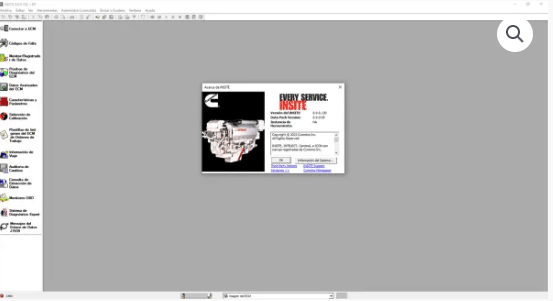
Cumminszz Insites 8.9
$ 97.00
Cumminszz Insites 8.9 is essential software for diagnosing and maintaining Cummins engines in heavy machinery and trucks. The program enhances engine performance through real-time data analysis and advanced diagnostic capabilities.
Cumminszz Insites 8.9: Comprehensive Diagnostic Solutions for Heavy Machinery and Trucks
Cumminszz Insites 8.9 is essential software for diagnosing and maintaining Cummins engines in heavy machinery and trucks. The program enhances engine performance through real-time data analysis and advanced diagnostic capabilities. This article will provide an overview of its features, installation requirements, and troubleshooting tips. Understanding how to effectively use Insite 8 and 9 can optimize operations and ensure reliable engine performance.
Understanding Cumminszz Insites 8.9
This section provides insights into Cumminszz Insites 8.9, highlighting its diagnostic capabilities and compatibility with various machinery.
Overview of Diagnostic Capabilities
The Cumminszz Insites software is designed to enhance the diagnostic process for engine maintenance. By enabling users to:
- Access real-time performance data
- Read and clear fault codes
- Analyze engine parameters for optimizing performance
- Implement custom tuning options
These features streamline troubleshooting and maintenance, making it essential for fleet operators and technicians.
Compatibility with Heavy Machinery and Trucks
Insites 8 9 is compatible with a broad range of heavy machinery and commercial trucks. This compatibility includes:
- Cummins diesel engines across various models
- Integration with electronic control modules (ECMs)
- Support for different vehicle configurations and equipment types
The software adapts to both older and newer models, ensuring versatile application in diverse operational settings.
Features of Insite Versions
The Insite software offers a wide range of features in its various versions, catering to the evolving needs of engine diagnostics and maintenance.
Key Features in Version 8
Version 8 introduced several essential functionalities that set the groundwork for future improvements. Key features include:
- Basic diagnostic capabilities, enabling users to read and clear fault codes.
- Engine Control Module (ECM) programming to adapt to specific modifications.
- Access to fault history logs for comprehensive analysis of recurring issues.
Advancements in Version 9
The transition to Version 9 brought significant advancements, enhancing user experience and diagnostic accuracy.
Enhanced Data Analysis Tools
With improved analytical features, Version 9 allows for in-depth examination of engine performance metrics. This enhancement facilitates quicker resolution of issues and promotes proactive maintenance strategies.
Cloud Storage Benefits
One of the standout features of Insite 9 is the integration of cloud storage. This functionality allows users to store diagnostic data securely online, ensuring accessibility from multiple devices and locations.
Utilizing the Software for Optimal Performance
Maximizing the efficiency of engine diagnostics and monitoring is essential in maintaining performance. The capabilities provided by the software greatly enhance operational effectiveness.
Real-time Monitoring Capabilities
The software presents advanced real-time monitoring features, enabling users to observe engine performance continuously. This functionality facilitates early detection of issues to prevent major breakdowns. Key aspects include:
- Access to live data regarding engine status.
- Prompt identification of warning signals, allowing for timely interventions.
- Enhanced decision-making through detailed performance metrics.
Customizing Engine Parameters
Tailoring engine settings to specific operational needs is crucial. The software allows comprehensive adjustments to enhance engine performance under various conditions. Customization options include:
- Adjusting fuel injection timing to improve efficiency.
- Modifying boost levels for increased power output.
- Setting parameters for different load conditions to optimize efficiency.
Generating Detailed Reports
Producing detailed diagnostics reports is a vital function of the software. These reports equip technicians with necessary insights for maintenance decisions. Benefits of report generation include:
- Documenting performance history for future analysis.
- Offering recommendations for routine maintenance based on analytical data.
- Facilitating communication regarding engine health among team members.
Installation and System Requirements
To effectively utilize the diagnostic software, it is necessary to meet specific installation and system requirements.
Hardware and Software Prerequisites
Before installation, ensure the following hardware and software specifications are met:
- Hardware: A computer running Windows 10 or later, with at least 4 GB of RAM and a processor speed of 2.0 GHz or higher.
- Software: Compatible drivers and any additional software required for communication between the computer and the engine must be installed to ensure proper functionality.
Step-by-step Installation Guide via TeamViewer
The installation process can be streamlined using TeamViewer for remote assistance. Follow these steps:
- Download the Insite software from the official Cummins website.
- Run the installer and follow the on-screen instructions to set up the application.
- Once installed, ensure the setup is complete by configuring necessary connections to the engine and selecting the appropriate models.
Setting Up Connection for Diagnostic Use
Establish a reliable connection between the software and the engine by ensuring both devices are properly connected. Verify the connection settings and confirm that all required drivers are updated to facilitate seamless communication.
Troubleshooting Common Issues
Common issues may arise during the use of diagnostic software. Addressing these challenges is essential for maintaining optimal functionality.
Resolving Connectivity Problems
Connectivity issues can hinder the software’s ability to communicate with the engine. Some steps to consider include:
- Check cable connections and ensure they are secure.
- Verify that drivers are up to date for seamless connectivity.
- Restart both the software and the computer system to refresh connections.
Addressing Calibration Challenges
Calibration difficulties may stem from incorrect settings or a lack of adequate information. To resolve these issues:
- Refer to the Insite user manual for guidance on proper settings.
- Consult calibration guides specific to the engine model to ensure accuracy.
Solutions for Data Reading Errors
Data reading errors can lead to inaccurate diagnostics and may result from hardware malfunctions. Suggested solutions include:
- Examine the ECM and sensors for potential defects.
- Ensure all components are functioning correctly and consider replacements if necessary.
Sé el primero en valorar “Cumminszz Insites 8.9”
Productos relacionados
All Products
All Products
All Products
All Products

All Products

All Products
Valoraciones
No hay valoraciones aún.